Teams & Roles
Each account could be assigned a team management system where account owners are able to invite members and assign roles with specific permissions.
Roles provide granular control over access to features within the account. For example:
- Finance role may only view and manage transactions
- Developer role may only view and manage integrations
Be mindful of the potential impact of assigning roles and permissions to team members. Ensure that each role is tailored to the specific needs of the team and that permissions are granted only to those who require them. Consider the following best practices:
- Assign roles based on job responsibilities and expertise
- Regularly review and update roles and permissions as needed
- Limit access to sensitive information and features
- Implement multi-factor authentication for critical accounts
Manage Teams
Within your account, head over to Settings → Team & Roles to manage your teams. Here are the primary functions of this feature:
| Function | Description |
|---|---|
| Manage Members | Invite or remove members from the business account |
| Assign Roles | Define responsibilities or update roles for each member |
| Audit Activity | Changes are tracked for each members within the account |
Invitations
Step-to-step guide process of inviting a team member along with all available options from this feature:
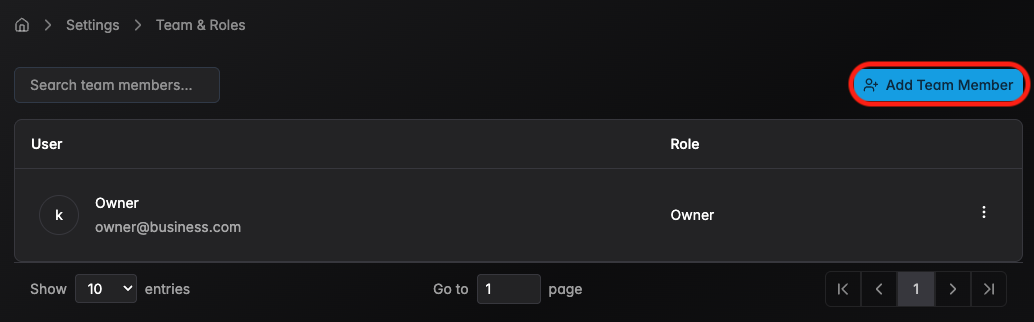
- Step 1 — Click on Add Team Member
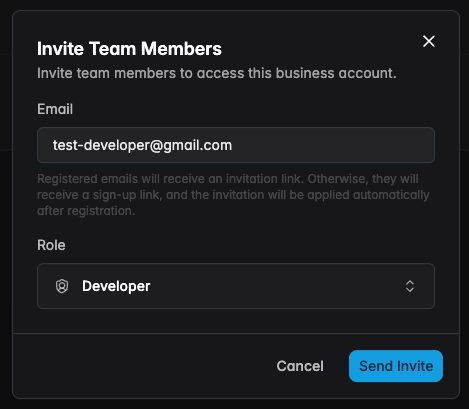
- Step 2 — Enter a valid email address, assign a role, then click on Send Invite
- Step 3 — An email will be sent to the invited member with an invitation link.
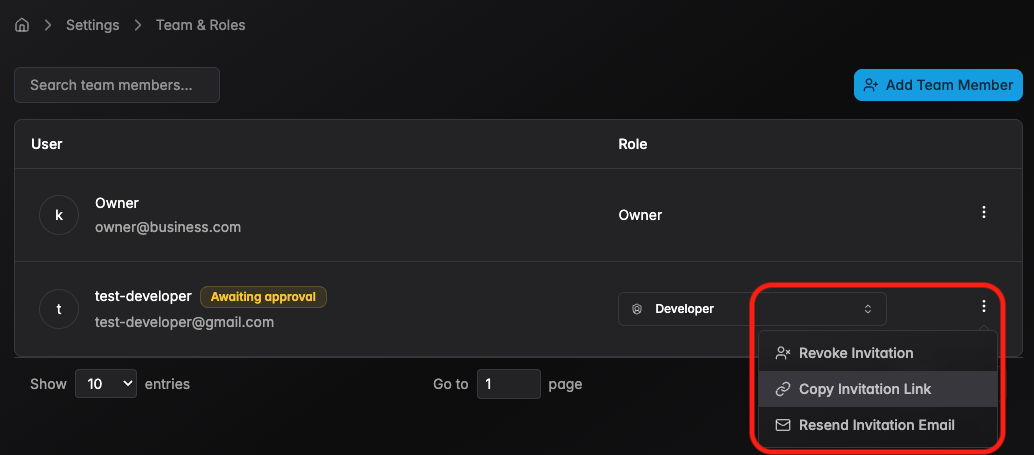
Other approval actions are also provided:
- If the invited email is incorrect, you are able to revoke an invitation
- If the invited person does not receive an email, you can copy the invitation link and send it manually
- If the invited person prefers to handle everything by email, you can manually resend the invitation email
Removal
Removal process is pretty straight forward, each members on the table list has it's assigned action button (triple dotted button). Access to this function is tied with the permission from a role.
To enable this function, please assign the correct role for the team member.
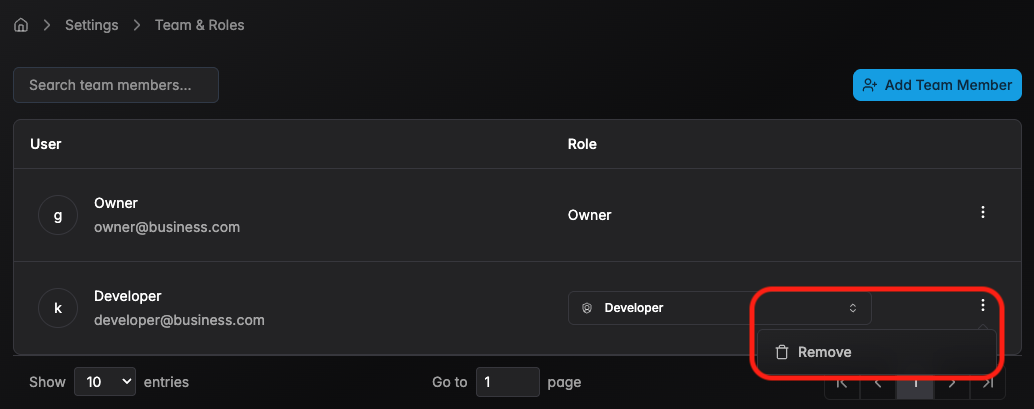
Any API keys created by the removed member remains active and it must be revoked separately. Removing a member immediately revokes their access only on the account associated.
Roles
Define a responsibility that correspond to what actions a team member can perform within the account. Each role contains a set of permissions that control access to specific features of the account.
| Role | Description |
|---|---|
| Owner | Full access to all features and settings |
| Developer | Access to API keys, webhooks, and technical integrations |
| Finance | Access to transactions, payouts, and financial reports |
If access of a specific Role isn't working properly or as intended within your account, please contact our assigned team for assistance.